本記事ではComfyUIを使ったVid2Vidワークフローの詳細や使用方法について解説します。最後に生成結果も載せているので、ぜひご覧ください。
とりあえずそれっぽい記事のタイトルと概要を書きましたが、
記事を書いてる理由としては「Vid2Vidをしてみたら割とうまくいったので見てほしい!」ってだけです。
正直生成した動画載せるだけでも良かったのですが、せっかくComfyUIのワークフローを作成したのでその使用方法も簡単に紹介しようと思います。
ワークフローの入手場所
「説明なんぞ要らん」って方もいると思うのでワークフローだけ先に置いておきます。
モデルと後処理について主に以下を取り入れています。
- モデル: AnimateDiff(V3) + ControlNet + IPAdapter(FaceID)
- 後処理: FaceDetailer + Upscale(ESRGAN) + Frame Interpolation
それぞれの手法についての説明やComfyUIでの使用方法などは以下に大体まとまってると思うので、良かったら読んでみてください。
-
Stable Diffusionガイド:画像生成に役立つリンク集
>-
-
Stable Diffusionガイド:動画生成に役立つリンク集
>-
-
Stable Diffusionガイド:論文読みリンク集
Stable Diffusion関連の論文解説記事のリンク集。画像生成・動画生成の基礎モデルから応用技術まで論文ベースで解説。

使い方
1. ComfyUIのインストール
以下のどちらかの方法でComfyUIを導入します。導入済の方もComfyUIを最新版にアップデートしてください。
方法1:ComfyUIを直接導入する
初めての方はこちらで良いと思います。
>-
方法2:StabilityMatrix(統合環境)経由でインストールする
>-
2. ワークフローのインポート
以下のリンク先からダウンロードしてインポートしてください。

3. 拡張のインストール
ComfyUI-Manager経由でInstall Missing Custom Nodesを実行するか、
もしくは手動で以下の拡張機能をインストールしてください。
必須
-
GitHub - ltdrdata/ComfyUI-Impact-Pack: Custom nodes pack for ComfyUI This custom node helps to conveniently enhance images through Detector, Detailer, Upscaler, Pipe, and more.
Custom nodes pack for ComfyUI This custom node helps to conveniently enhance images through Detector, Detailer, Upscaler, Pipe, and more. - ltdrdata/ComfyUI-Impact-Pack
github.com -
GitHub - Fannovel16/comfyui_controlnet_aux: ComfyUI's ControlNet Auxiliary Preprocessors
ComfyUI's ControlNet Auxiliary Preprocessors. Contribute to Fannovel16/comfyui_controlnet_aux development by creating an account on GitHub.
github.com -
GitHub - Fannovel16/ComfyUI-Frame-Interpolation: A custom node set for Video Frame Interpolation in ComfyUI.
A custom node set for Video Frame Interpolation in ComfyUI. - Fannovel16/ComfyUI-Frame-Interpolation
github.com -
GitHub - cubiq/ComfyUI_IPAdapter_plus
Contribute to cubiq/ComfyUI_IPAdapter_plus development by creating an account on GitHub.
github.com -
GitHub - Kosinkadink/ComfyUI-Advanced-ControlNet: ControlNet scheduling and masking nodes with sliding context support
ControlNet scheduling and masking nodes with sliding context support - Kosinkadink/ComfyUI-Advanced-ControlNet
github.com -
GitHub - Kosinkadink/ComfyUI-AnimateDiff-Evolved: Improved AnimateDiff for ComfyUI and Advanced Sampling Support
Improved AnimateDiff for ComfyUI and Advanced Sampling Support - Kosinkadink/ComfyUI-AnimateDiff-Evolved
github.com -
GitHub - Kosinkadink/ComfyUI-VideoHelperSuite: Nodes related to video workflows
Nodes related to video workflows. Contribute to Kosinkadink/ComfyUI-VideoHelperSuite development by creating an account on GitHub.
github.com -
GitHub - kijai/ComfyUI-KJNodes: Various custom nodes for ComfyUI
Various custom nodes for ComfyUI. Contribute to kijai/ComfyUI-KJNodes development by creating an account on GitHub.
github.com


任意(便利系)
-
GitHub - rgthree/rgthree-comfy: Making ComfyUI more comfortable!
Making ComfyUI more comfortable! Contribute to rgthree/rgthree-comfy development by creating an account on GitHub.
github.com -
GitHub - pythongosssss/ComfyUI-Custom-Scripts: Enhancements & experiments for ComfyUI, mostly focusing on UI features
Enhancements & experiments for ComfyUI, mostly focusing on UI features - pythongosssss/ComfyUI-Custom-Scripts
github.com
4. ライブラリの手動インストール
FaceIDに必要なpythonライブラリがエラーでインストールされないので、手動でインストールします。
下のリンクからinsightfaceのwheelをダウンロードしてから、pipでインストールコマンドを叩いてください。
Contribute to Gourieff/Assets development by creating an account on GitHub.
# standalone版の場合はpythonコマンドをpythonの実行バイナリへのパスで置き換えますpython -m pip install (ダウンロードしたwhlのパス) onnxruntime onnxruntime-gpu参考にした動画:
5. 必要なモデルのダウンロード
IPAdapter、ControlNet、AnimateDiffにはそれぞれ専用モデルのダウンロードが必要です。リポジトリなどから、必要なものをダウンロードしてきます。
-
lllyasviel/ControlNet-v1-1 at main
We’re on a journey to advance and democratize artificial intelligence through open source and open science.
huggingface.co -
GitHub - cubiq/ComfyUI_IPAdapter_plus
Contribute to cubiq/ComfyUI_IPAdapter_plus development by creating an account on GitHub.
github.com -
guoyww/animatediff at main
We’re on a journey to advance and democratize artificial intelligence through open source and open science.
huggingface.co

6. 入力となる動画を作成
AnimateDiffは高fps動画に対応していない(ぼやける)ので、動画を8fpsに変換してください。ffmpegなどを使うとラクです。
7. 生成する
後は諸々パラメータをいじってから生成します。
設定やモデルが足りない場合はエラーが出ると思うので、適宜直しながら実行してみてください。
Tips
- AnimateDiff-LightningやLCM-LoRAなどを使用する形に変えると素早く生成できます
- ただ動画を生成するだけならFaceIDはなくても良い
- ControlNetは元となる動画や生成したい動画に応じて、切り替えてください
- 線画・アニメ系ならLineart、SoftEdge、あとCannyとか
- 奥行きが大事ならDepth
- 動作が大事ならOpenPose
- など
生成結果
ファイルサイズ・形式の関係ではてなブログに貼れなかったのでYoutube
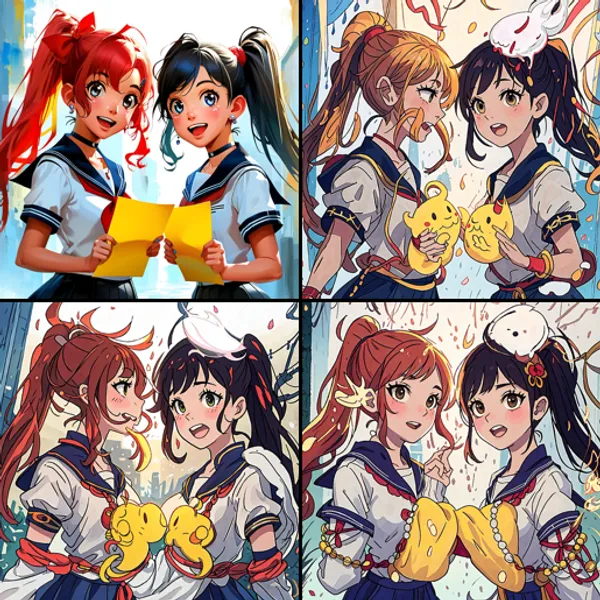

いい感じに生成できてるんじゃないでしょうか!!!顔が動かなくて不気味とか、腕がたまに消えるとか、ちょこちょこ気になる点が残ってますが、時間の関係でパラメータの調整はここまでにしておきます。
一週間ぐらい試行錯誤してたので、今日は気分よく寝れそうです。最後まで読んでいただきありがとうございました。