In this article, I will introduce how to automatically generate masks from an image using ComfyUI and its extension Impact Pack. For simplicity, I will focus on the method of extracting people from an image and processing it, but since this method can be used for things other than extracting people by changing the model used, if you are interested in such tasks, please read on.
For example, it can be used for the following purposes.
- Cropping only a part of the image or only the background to use elsewhere
- Replacing only the background with inpaint
- Rewriting (erasing) only a part of the image with inpaint
Extensions Used

Custom nodes pack for ComfyUI This custom node helps to conveniently enhance images through Detector, Detailer, Upscaler, Pipe, and more. - ltdrdata/ComfyUI-Impact-Pack

This repository offers various extension nodes for ComfyUI. Nodes here have different characteristics compared to those in the ComfyUI Impact Pack. The Impact Pack has become too large now... - ltd...
Workflow
Process in the following flow.
- Extract all persons in the image with object detection model (YOLO)
- Extract only the person with the highest confidence (the main subject in the image)
- Semantic segmentation with Segment Anything
- Extract only the mask with the largest area (excluding small dots)
The filtering method might change depending on the nature of the image for which you want to generate a mask, but if there is one person, it should be possible to generate without problems with the following. If there are multiple people, adjust values such as SEGS Filter.
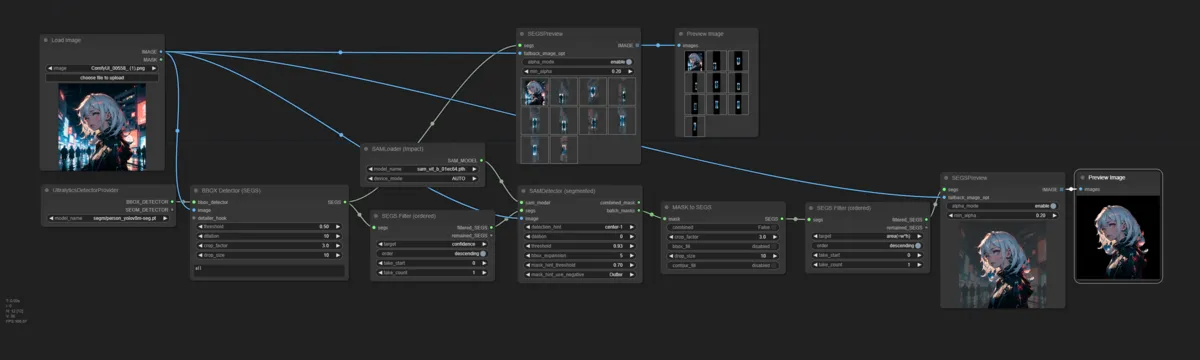
Mask Generation Result

(From left) Original image, detected object, object with highest confidence (person shown as main in the image), mask obtained by segmentation, image with original image and mask overlaid
There is a little blur, but if replaced with SAM2 recently announced by Meta, accuracy might improve a little more.
Inpaint the background
Actually rewrite the background using this mask. Currently, the person is the target of rewriting, so invert the mask and then inpaint.

Note: Top left is connected to the mask generation workflow
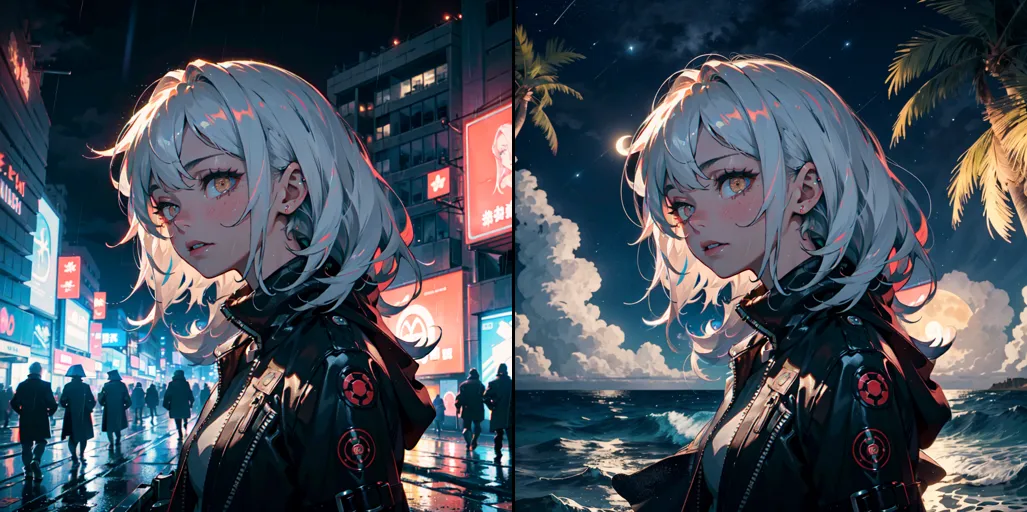
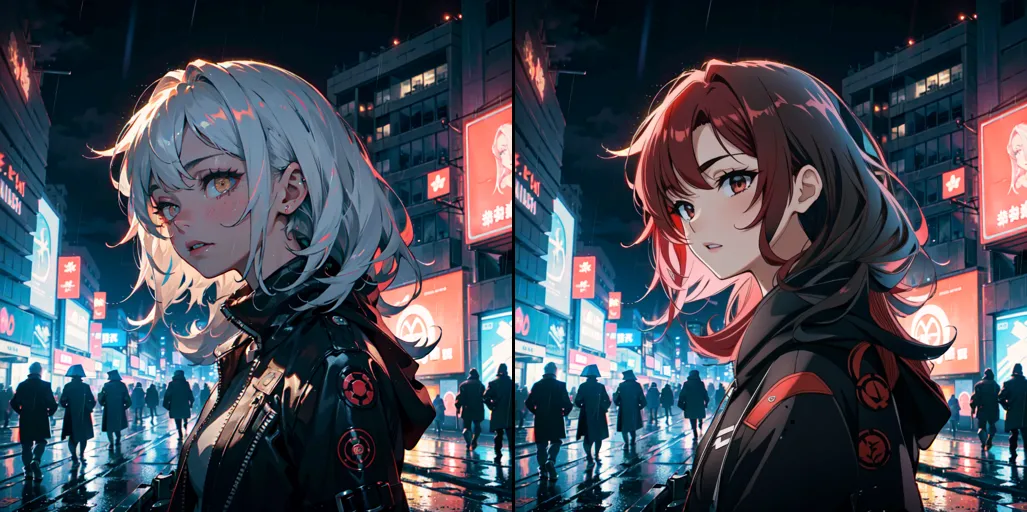
Inpaint the person
When inpainting a person, it is recommended to incorporate ControlNet to prevent things other than people from being generated (not strictly necessary, but to reduce failures).
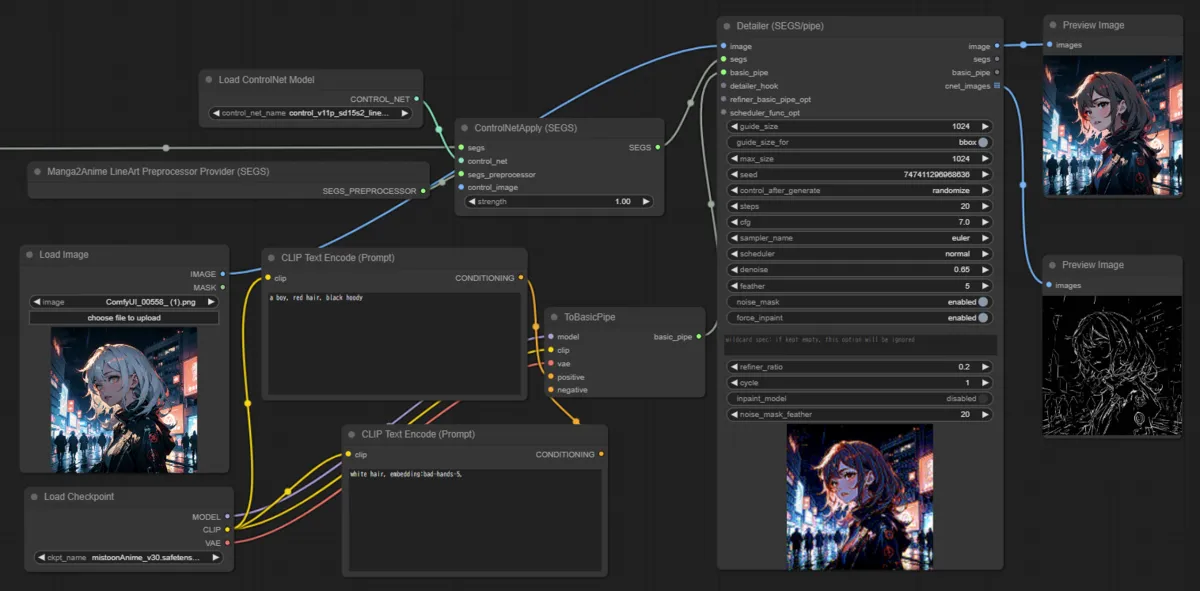
Note: Top left is connected to the mask generation workflow
If you want to use ControlNet Auxiliary Preprocessors which is often used for ControlNet preprocessing, you can use it by inputting to control_image as follows.
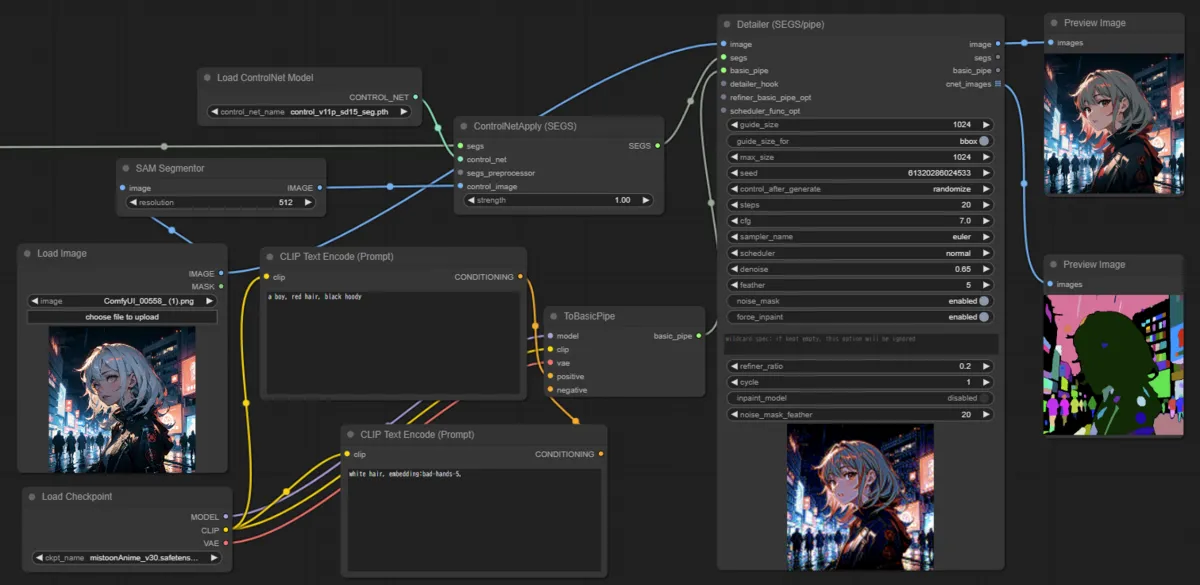
Conclusion
How was it? Since there are models that can detect other objects such as face/hand/clothes/skin as targets, not just people, if you want to extract objects not limited to people, you should consider this method.
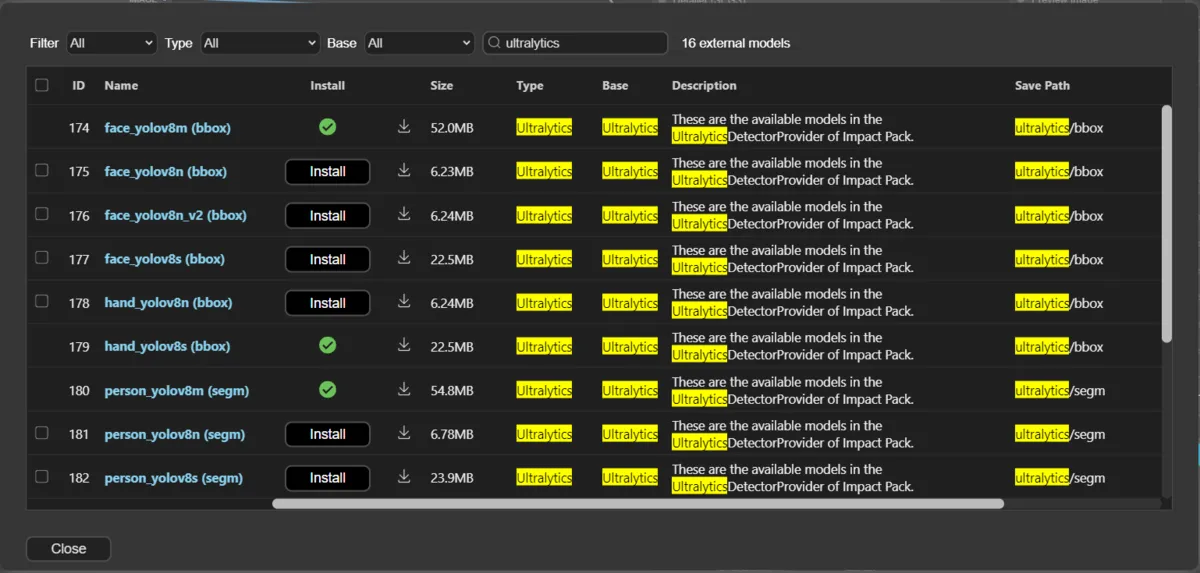
If you have already installed ComfyUI Manager, you can download pre-trained models from Model Manager as follows.