I was planning to buy a Mac Studio M4 Max with 128GB, but it quietly disappeared from store shelves everywhere. Ended up going with the EVO-X2 instead — still set me back ¥470,000. Parts prices are brutal.
The EVO-X2 runs a Ryzen AI MAX+ 395, an APU where CPU and GPU share 128GB of LPDDR5 unified memory. Allocate 96GB to the GPU through a BIOS setting and you have enough headroom for reasonably large models. The goal was to join it to my k8s cluster as a GPU inference node. This post covers everything up to getting ComfyUI running.
Architecture

IOMMU is enabled on the physical host to pass the GPU through to an Incus VM. The k3s agent runs inside that VM, with workloads deployed via ArgoCD GitOps.
Getting Into the Cluster First
The steps up to joining the cluster were the same as always — I worked through it by skimming past posts and it came back to me well enough.
- Wipe Windows and install Ubuntu 26.04
- Install Incus
- Configure the network bridge
- Create a VM and attach it to the host network
I’ll leave the details to previous posts in this series.
GPU Passthrough Setup (Host Side)
This is where things get interesting. I’d never done passthrough before, so I worked through it with some AI assistance.
Editing GRUB
Passing vfio-pci.ids= as a kernel parameter lets you switch GPU ownership per boot entry.
sudo nano /etc/default/grubLines to change:
# Normal boot (VM GPU mode): pass both GPU and ASP/CCP — details belowGRUB_CMDLINE_LINUX_DEFAULT="quiet splash amd_iommu=on iommu=pt vfio-pci.ids=1002:1586,1022:17e0"
# Show the GRUB menuGRUB_TIMEOUT_STYLE=menuGRUB_TIMEOUT=5sudo update-grubvfio-pci softdep Configuration
Since ids= is handled by the kernel parameter, only softdeps go in modprobe.d.
sudo tee /etc/modprobe.d/vfio.conf << 'EOF'softdep amdgpu pre: vfio-pcisoftdep ccp pre: vfio-pciEOF
# Remove any modules-load.d vfio config — kernel parameters handle this nowsudo rm -f /etc/modules-load.d/vfio.conf
sudo update-initramfs -u
Adding a Troubleshooting GRUB Entry
Once the GPU is handed off to the VM, the host loses its display output. Adding a boot entry without vfio-pci.ids= gives you a way back in when you need to change something.
sudo tee /etc/grub.d/40_custom_ai_debug << 'EOF'#!/bin/shexec tail -n +3 $0menuentry "Ubuntu - GPU Troubleshooting (Display ON, VM GPU OFF)" { insmod part_gpt insmod ext2 # Replace these UUIDs with your own (use blkid to find them) search --no-floppy --fs-uuid --set=root YOUR-EFI-PARTITION-UUID linux /vmlinuz-7.0.0-15-generic root=UUID=YOUR-ROOT-PARTITION-UUID ro quiet splash amd_iommu=on iommu=pt initrd /initrd.img-7.0.0-15-generic}EOFsudo chmod +x /etc/grub.d/40_custom_ai_debugsudo update-grubVerifying After Reboot
# Confirm IOMMU is enableddmesg | grep -i iommu | head -20
# Find the GPU's IOMMU groupfor d in /sys/kernel/iommu_groups/*/devices/*; do  n=${d#*/iommu_groups/*}; n=${n%%/*}  printf 'IOMMU Group %s ' "$n"  lspci -nns "${d##*/}"done | grep -i "AMD\|Radeon\|display\|VGA"
The Big Gotcha — Pass Through the ASP/CCP Too, or the GPU Won’t Initialize
This was the biggest time sink of the whole setup.
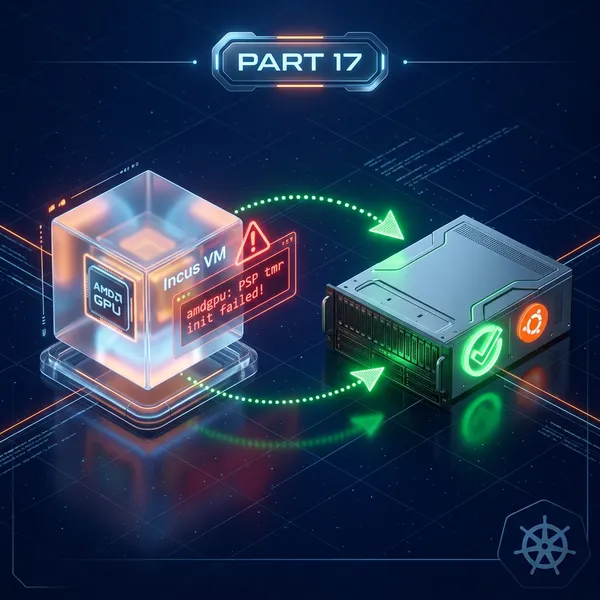
Passing only the GPU (Device ID 1002:1586) to the VM caused amdgpu to fail initialization with:
[drm] PSP tmr init failed!amdgpu 0000:01:00.0: amdgpu: Failed to load gpu_info firmwareamdgpu: probe failed with error -22The culprit is the AMD Secure Processor (ASP / CCP, Device ID 1022:17e0).
On Strix Halo, the GPU’s PSP needs to load TOC firmware in cooperation with the CPU-side AMD Secure Processor. Pass through the GPU alone and the ASP stays on the host side — vfio-pci doesn’t grab it, so it’s unreachable from inside the VM. PSP initialization then fails with UNKNOWN CMD(0xFFFFFFFF).
This is an APU-specific quirk and there’s almost nothing written about it online. It took me a while to track down. If you’re stuck on the same error, start here.
The fix is to pass through both the GPU and the ASP. Add both Device IDs to vfio-pci.ids= in GRUB, and add softdeps for both in modprobe.d.
GRUB_CMDLINE_LINUX_DEFAULT="... vfio-pci.ids=1002:1586,1022:17e0"softdep amdgpu pre: vfio-pcisoftdep ccp pre: vfio-pci ← don't skip this oneThis isn’t Strix Halo-specific — with any APU, you should check the IOMMU group and pass through related devices alongside the GPU.
GPU Passthrough Setup (Incus Side)
Run this with a normal boot (GPU held by vfio-pci). Use lspci to find the PCI addresses for your machine.
sudo incus stop k3s-03-ai --force 2>/dev/null; true
# Add both GPU and ASPsudo incus config device add k3s-03-ai gpu gpu pci=<GPU PCI address>sudo incus config device add k3s-03-ai asp pci address=<ASP PCI address>
# Disable Secure Boot (required for vfio-pci passthrough)sudo incus config set k3s-03-ai security.secureboot=false
sudo incus start k3s-03-ai
You can also verify (and probably configure) this from the WebUI.
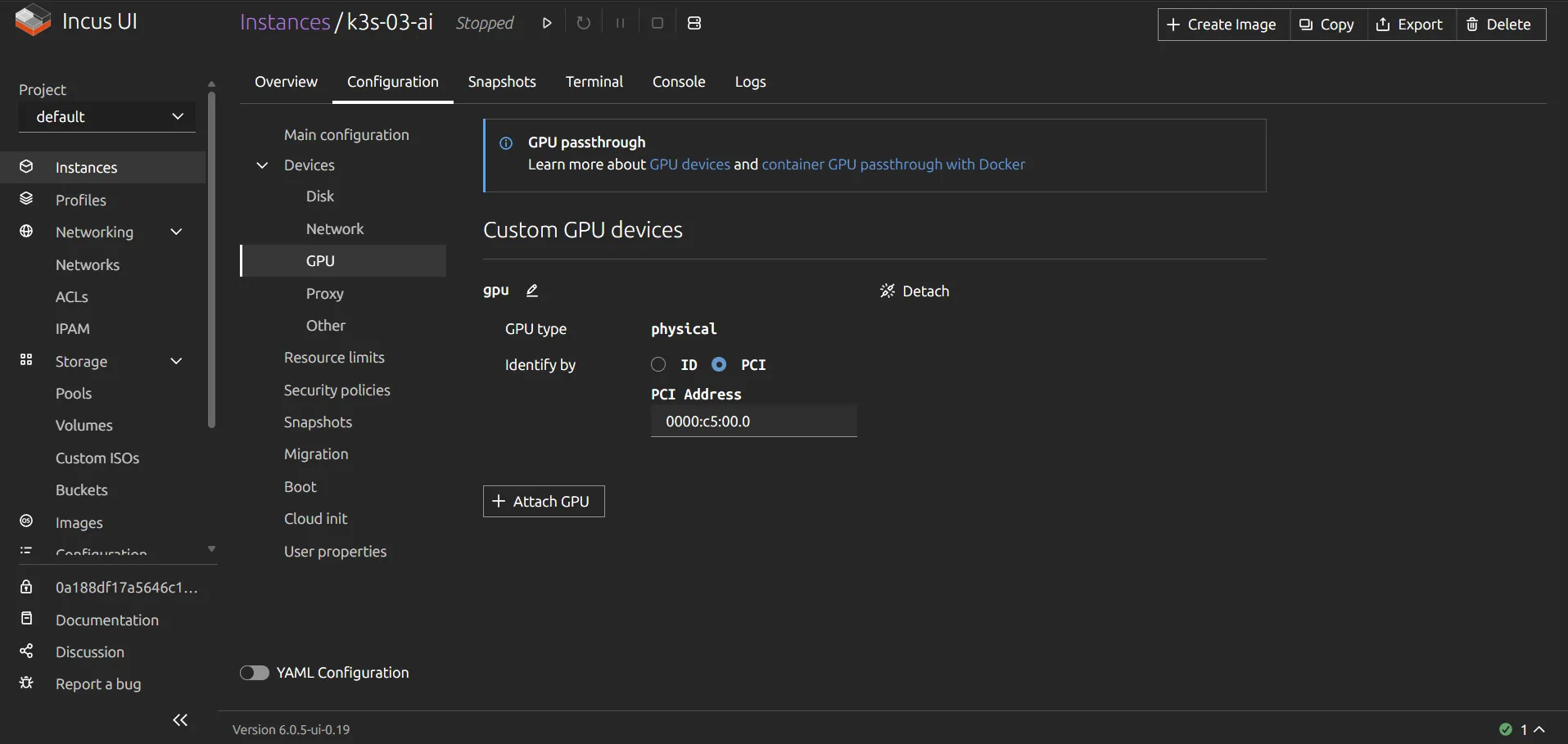
Confirm inside the VM as well:
sudo incus exec k3s-03-ai -- ls /dev/dri/# → renderD128 or similar means it workedInstalling ROCm
Install inside the VM — the k3s node. Not on the host or in Incus itself. Since the GPU is passed through, no drivers are needed on the host side.
The official docs say Ubuntu 24.04 is required, but there’s plenty of evidence that it installs fine on Ubuntu 26.04 with apt. I ignored the warning and moved on. There is one trap, though.

System requirements for AMD ROCm
Running apt install rocm pulls in amdgpu-dkms as a dependency, and the build fails:
error: implicit declaration of function 'zone_device_page_init'amdgpu-dkms (6.16.x series) uses a function whose signature changed in kernel 7.x. The kernel-built-in amdgpu on Ubuntu 26.04 works fine, so the DKMS version isn’t needed. Hold it first, then install ROCm.
sudo apt updatesudo apt install -y linux-firmware
# Hold amdgpu-dkms — incompatible with kernel 7.xsudo apt-mark hold amdgpu-dkms
sudo apt install rocm -y
sudo usermod -aG render,video $USER
Verifying
There’s an equivalent of nvidia-smi for ROCm:
rocminfo | grep -E "Name:|Marketing"Name: AMD RYZEN AI MAX+ 395 w/ Radeon 8060SMarketing Name: AMD RYZEN AI MAX+ 395 w/ Radeon 8060SVendor Name: CPUName: gfx1151Marketing Name: AMD Radeon GraphicsVendor Name: AMDrocm-smiDevice Node IDs Temp Power VRAM% GPU%0 1 0x1586, 44266 34.0°C 8.015W 0% 0%Device 0 showing up with VRAM% and GPU% visible means it’s working.
One more thing: if you haven’t set UMA Frame Buffer Size in the BIOS, VRAM will be smaller than expected. Auto mode allocated only around 61GB in my case. Setting it to 96GB fixed that — rocm-smi then reports VRAM Total: 98304 MiB.
Kubernetes Setup
Joining the Cluster
Install your k8s distribution of choice and join the cluster. I’m using k3s.
kubectl get nodes -o wideNAME STATUS ROLES AGE VERSION INTERNAL-IPk3s-01 Ready control-plane 5d18h v1.35.4+k3s1 192.168.100.151k3s-02 Ready <none> 5d18h v1.35.4+k3s1 192.168.100.152k3s-03-ai Ready <none> 4h9m v1.35.4+k3s1 192.168.100.154Adding Labels for the Inference Node
kubectl label node k3s-03-ai role=inferencekubectl label node k3s-03-ai accelerator=amd-gpuAMD GPU Device Plugin
You need the official device plugin to expose AMD GPUs as Kubernetes resources.
Kubernetes (k8s) device plugin to enable registration of AMD GPU to a container cluster - ROCm/k8s-device-plugin

Deploy it as a DaemonSet scoped to inference nodes via nodeSelector: accelerator: amd-gpu. See the upstream docs for the full manifest.
Deploying Something to Verify
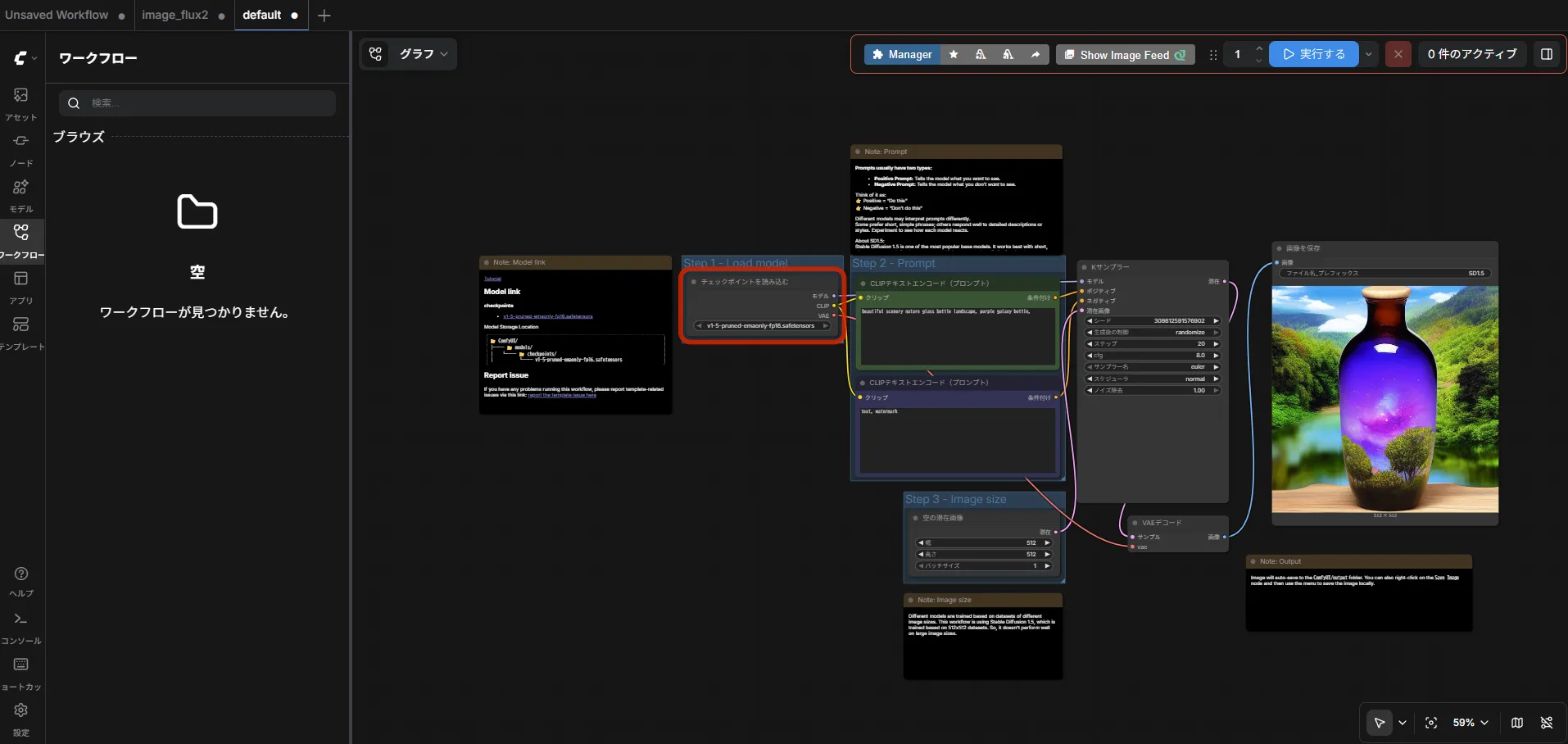
I tried ComfyUI first. Set the nodeSelector and add the GPU resource limit — that’s it.
nodeSelector: accelerator: amd-gpuresources: limits: amd.com/gpu: "1"Also pass HSA_OVERRIDE_GFX_VERSION=11.5.1 as an environment variable so ROCm recognizes gfx1151 (Strix Halo). Without it the GPU won’t be visible.
Image generation worked.
Wrapping Up
I’ve got a feel for how this all fits together, so next I’ll try running an LLM on it.
Running a local coding agent without rate limits, building a voice assistant wired up to a speaker and mic, trying video generation, game streaming with Sunshine — there’s no shortage of things to try. The weekend ran out before I got to any of them.
If you’re stuck on the same Strix Halo VFIO setup, I hope this helps.
References
System requirements for AMD ROCm
Kubernetes (k8s) device plugin to enable registration of AMD GPU to a container cluster - ROCm/k8s-device-plugin