This time, I introduce a method to connect an instance created with Incus directly to the Host side network, not the cluster internal network. I am using Netplan, but basic procedure is same even if not Netplan, so it should be applicable.
Preparation: Configure bridge network
First, configure a bridge network on the Host side.
Disable cloud-init
If using Ubuntu, a file called 50-cloud-init.yaml might interfere with network settings. Disable this. If not using Netplan, you can skip.
sudo touch /etc/cloud/cloud-init.disabledsudo rm /etc/netplan/50-cloud-init.yamlWrite settings for bridge
Next, write config file for bridge network. Here I create a bridge network called br0 and use physical network device enp3s0 as its interface. Configure static IP address etc. on br0 side.
network: version: 2 ethernets: enp3s0: dhcp4: false dhcp6: false bridges: br0: dhcp4: false dhcp6: false interfaces: [enp3s0] addresses: [192.168.100.101/24] routes: - to: default via: 192.168.100.1 nameservers: addresses: [192.168.100.1] parameters: stp: false forward-delay: 0Apply settings
Once done up to here, apply settings. After command execution, check if br0 network device is properly configured using ip a or ifconfig. It’s perfect if you also confirm that IP address is not assigned to physical device.
Note: If you mistake settings, remote connection might become impossible. I recommend working in an environment where you can connect a display to the physical machine just in case.
sudo chmod 600 /etc/netplan/01-config.yaml # If yaml wasn't made with root usersudo netplan generate # Might be unnecessarysudo netplan applyApply to servers in Cluster
If configuring Incus in cluster, creating br0 on servers other than Bootstrap Server is also necessary. Follow same steps on all servers in cluster. Adjust static IP addresses etc. appropriately.
Set Network to Profile
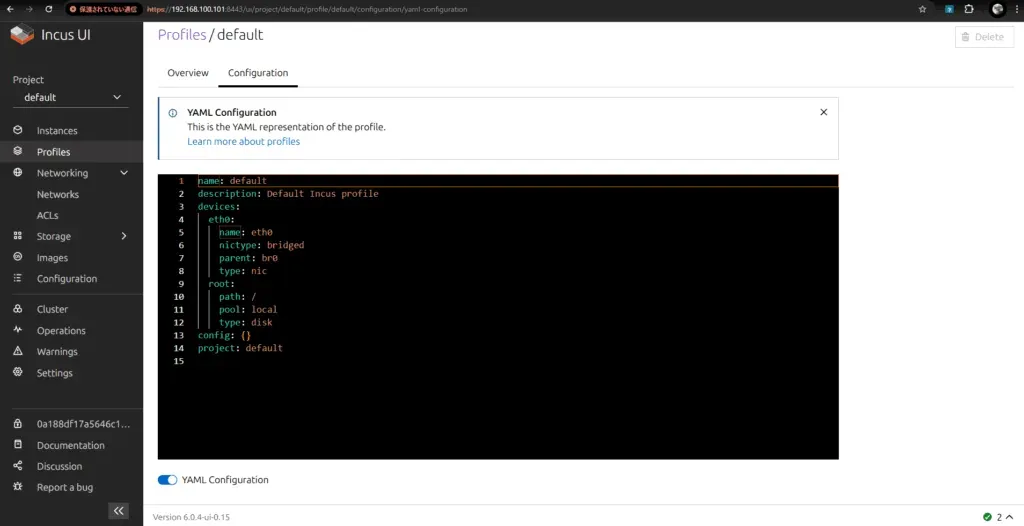
Finally Incus side settings. Inherit the bridge network (br0) created earlier and configure so Incus instance can connect to Host network. Since it seems impossible from network settings currently, write settings directly to Profile.
Pasting some reference threads.
Ref 1: https://discuss.linuxcontainers.org/t/incus-cluster-network-issue/18650 Ref 2: https://discuss.linuxcontainers.org/t/attaching-instances-from-the-managed-bridge-network-to-the-host-bridge-network/21530/3 Ref 3: https://discuss.linuxcontainers.org/t/how-to-use-my-local-lan-instead-of-incus-network-ipv4-and-ipv6/21564/4 Ref 4: https://discuss.linuxcontainers.org/t/incus-container-bridge-issues/22128/3
If setting via CLI
Profile is arbitrary, but applying to default profile here.
incus profile device remove default eth0incus profile device add default eth0 nic nictype=bridged parent=br0 name=eth0If setting via GUI
If using Incus GUI, you can move to YAML setting screen from following toggle in profile edit screen.
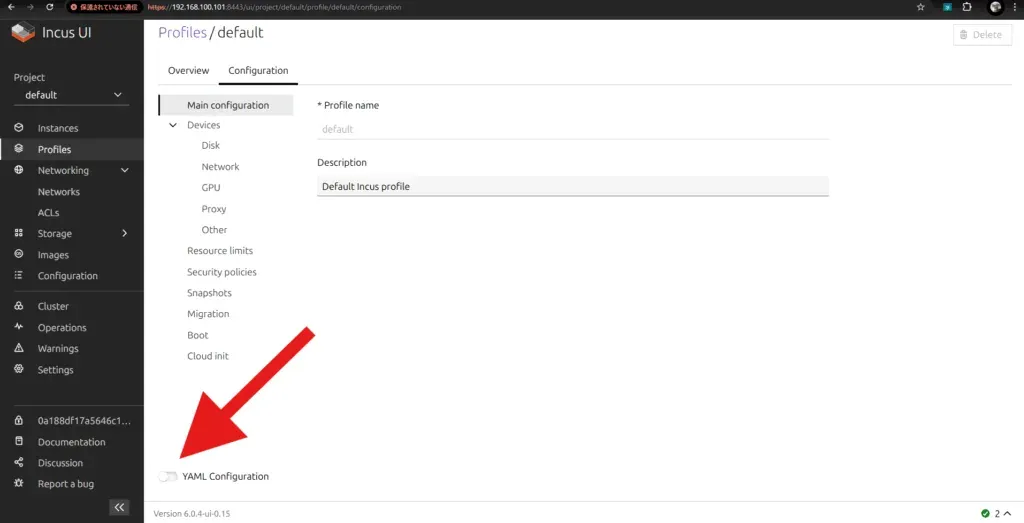
Change eth0 part as follows here.
Create Instance
Finally time to create an instance! Let’s create a new instance using the profile configured earlier.
Once instance starts, check if IP address is coming down properly with ip a etc. If acquired from the IP address range of host network you set, it’s almost success! While rejoicing, let’s try pinging too.
Supplement: Assign Static IP with Cloud-Init
As an example, if using Ubuntu 24.04 image, you can fix IPv4 address by describing Network Config in Cloud-Init settings as follows.
version: 2ethernets: enp5s0: dhcp4: false dhcp6: true addresses: - 192.168.100.123/24 # Address you want to use routes: - to: default via: 192.168.0.1 nameservers: addresses: - 192.168.0.1Conclusion
This time I introduced the method to connect Incus instance to Host side network. It’s a useful setting when you want to join instance directly to host network separately from cluster network.
It required several steps like bridge network setting, disabling cloud-init, and changing Incus profile, but I’m glad it went well.
If it doesn’t work, comment and I’ll answer within my knowledge.