Until recently, when accessing my home server from outside, anxiety like “Don’t I need a static IP contract?” or “Security measures seem costly…” crossed my mind, and I couldn’t quite take the first step. However, upon investigation, I found that if limited to personal use, there are surprisingly low-cost ways to achieve external access.
That is “Methods utilizing VPN.”
There are several methods, for example:
- Building a VPN connection using a VPN-compatible router
- Building manually using software VPN (e.g., WireGuard)
This time, I actually tried the “Method using a VPN router,” which has relatively simple settings and high stability, so I will introduce the procedure and points of caution in detail. I hope this serves as a reference for those who “want to utilize their home server more, but worry about cost and security…”
Equipment Used
- VPN Router
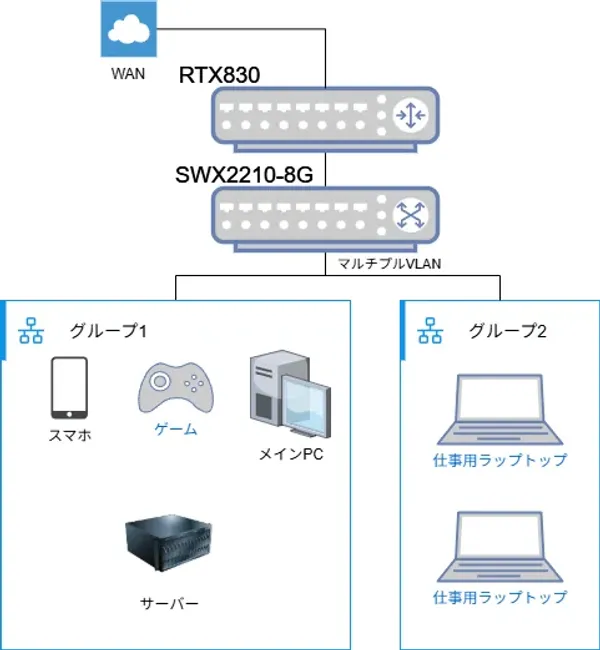
- Yamaha RTX830
- External Connection Test Device
- Cellular capable device (Smartphone etc.)
- I will explain using an iPhone this time
VPN Server Setup Procedure
Here I will explain the method using GUI.
Ref: https://network.yamaha.com/setting/router_firewall/vpn/vpn_client/vpn-smartphone-setup-rtx1210
Netvolante DNS Registration
If you don’t contract a static IP, your home router’s IP changes periodically. To deal with this, we use Netvolante DNS. By using Netvolante DNS, it automatically updates the mapping of hostnames to IPs (so-called DDNS).
First, as preparation for using Netvolante DNS, if you haven’t configured PPPoE connection, please do so. I will omit detailed settings, but you will need the user ID and connection password from your provider contract.
From here, we actually configure Netvolante DNS.
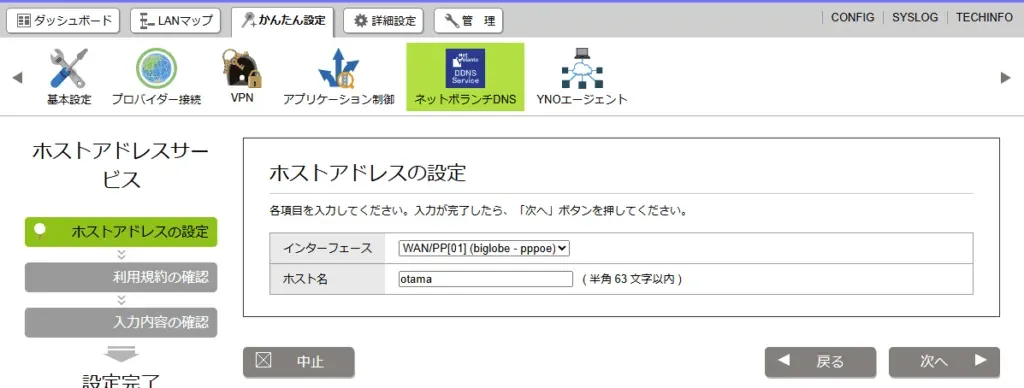
Go to Easy Settings -> Netvolante DNS and click “Configure.” If PPPoE is not correctly configured, a display like “No available interface” will appear, so please review your PPPoE connection settings.
In the screen below, select the PPPoE interface configured earlier and proceed. The hostname can be anything. After that, follow the instructions to complete.
VPN Settings
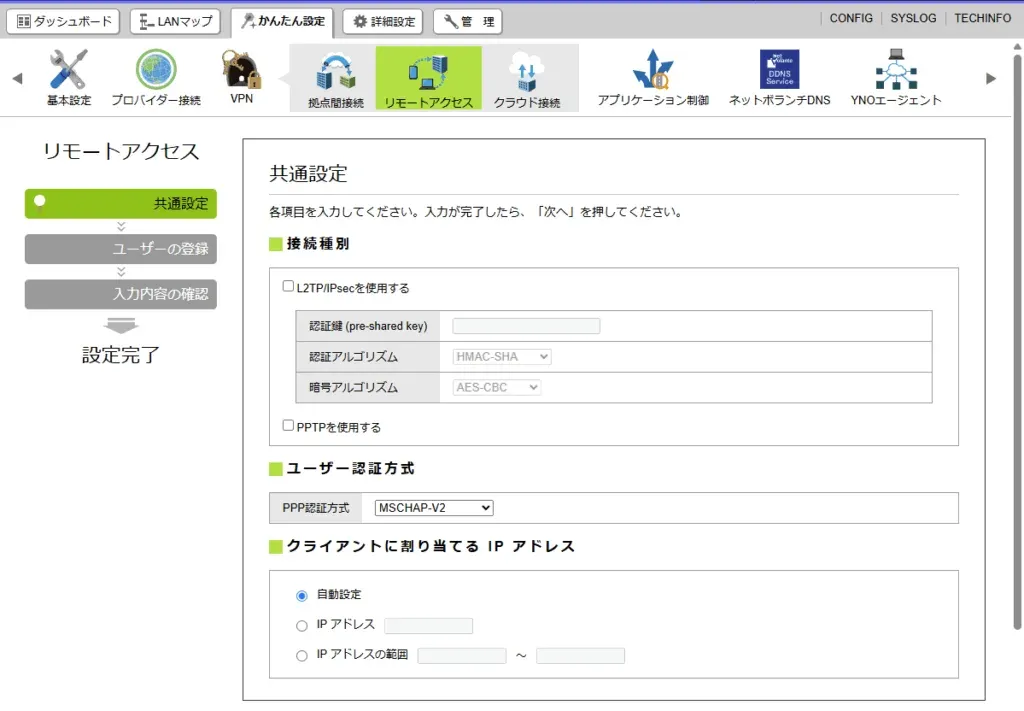
Go to Easy Settings -> VPN -> Remote Access and click “New.”
L2TP/IPsec is good for the connection type. The iPhone doesn’t support PPTP in the first place.
The authentication key can be any string, but make it as long and hard to guess as possible. Random generation is best securely. Defaults should be fine for the rest. I debated using the stronger 256-bit algorithms, but there seem to be issues like unable to connect with iPhone.
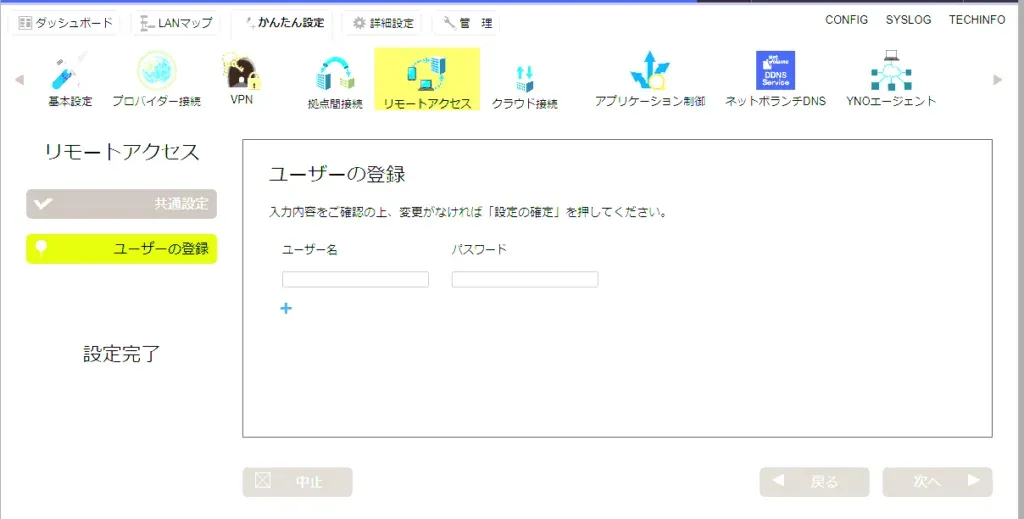
In the next screen, register users. Enter the username and password to use when connecting (create as many as needed). Basically, it’s just me, but if utilizing with family, you’d add everyone. Then follow instructions to complete settings.
VPN Client Setup Procedure
Next is the client side (iPhone here) setup. Use the hostname obtained from Netvolante DNS, the authentication key registered in VPN settings, username, and password.
Ref: https://network.yamaha.com/setting/router_firewall/vpn/vpn_client/ios
VPN Settings
Go to Settings -> General -> VPN & Device Management -> VPN (Not Connected) -> Add VPN Configuration to jump to the add screen.
In the add screen, configure as follows:
- Type: L2TP
- Description: Arbitrary
- Server: Hostname obtained from Netvolante DNS
- Account: Username registered in VPN settings
- RSA SecurID: Off
- Password: Password registered in VPN settings
- Secret: Authentication key registered in VPN settings
- Send All Traffic: On
- Proxy: Off
Connect to VPN
Select the configuration added earlier and toggle “Status” to Connect. If there are no errors in settings, it should connect.
If You Cannot Connect
If IPoE connection is prioritized, there are cases where you cannot connect.
If using V6 Plus, V6 Option, etc., connection settings likely include both PPPoE and IPoE at this point. Use IP filters etc. to configure so that PPPoE, not IPoE, is prioritized for VPN connections.
I looked around, and the following method seemed to be the standard approach. (tunnel 1 is the interface for IPoE connection)
# Create filters for VPN connection, specifying ports used for VPNip filter 500001 pass * * udp 500 *ip filter 500002 pass * * udp 4500 *ip filter 500003 pass * * udp 1701 *ip filter 500004 pass * * esp
# Configure to fallback to pppoe if ipoe connection fails# *Only if matching created filtersip route default gateway tunnel 1 gateway pp 1 filter 500001 500002 500003 500004
Ref: https://www.rtpro.yamaha.co.jp/RT/manual/rt-common/ip/ip_route.html
Conclusion
I struggled around IPoE and PPPoE, but managed to establish a VPN connection from iPhone to my home network. Since it’s a connection to the router, I’m skeptical if reachability settings like VLAN work well. If anyone is knowledgeable, I’d like to know.
Security-wise, pre-shared key is basically the only auth method (seems same even with IKEv2), so there’s a bit of fear…
WireGuard seems to support public key authentication, so I might try that one of these days.