In this article, I talk about improving my home network environment. I built it with a focus on enhancing router performance and strengthening security.
I’ve listed the equipment used and the workflow, hoping it helps those planning or considering similar attempts.
Network Configuration
Previous Network Configuration
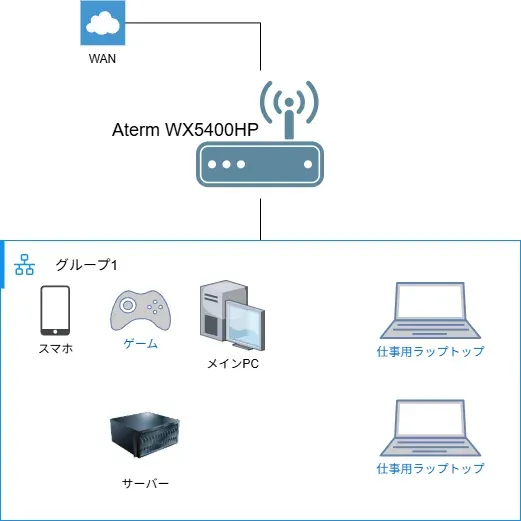
Current Network Configuration
Tasks Performed
Router Performance Enhancement
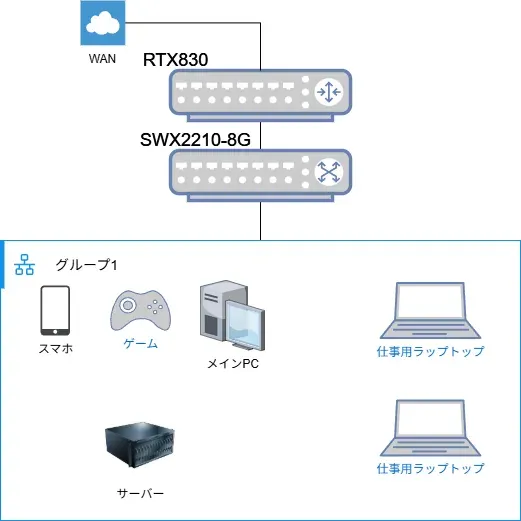
For performance enhancement and freedom of configuration, I introduced a router (RTX830) and an L2SW (SWX2210-8G).
I chose them assuming they had functions sufficient for my use case. I can’t deny it feels like over-spec for what I wanted to do, but “the greater serves for the lesser,” so it’s fine.
When choosing the router, I confirmed the following contents. Especially if the top item wasn’t supported, it would be a major problem (requiring manual config), but YAMAHA had it documented, which was reassuring.
- Biglobe Hikari V6 Option support
- 1000BASE-T ~
- VLAN function (Port-based VLAN)
- Packet Filter
- Ability to freely tweak configuration via commands
Next, when choosing the switch, I required it to have the following functions. Since the router was already decided, I narrowed it down to YAMAHA so I could configure it from a single management screen.
- 1000BASE-T ~
- Tag VLAN
- Multiple VLAN
- ACL
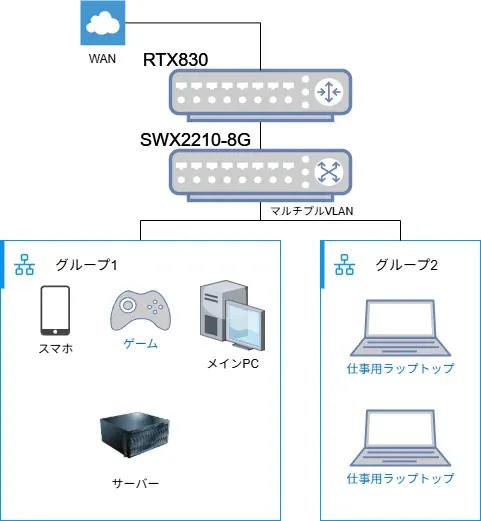
After introducing the equipment, the configuration became like this. At this timing, the network wasn’t segmented, so all devices could communicate with each other.
Setting Static IP on Server
Next, I assigned a static IP to the server PC. I won’t go into details here, but Ubuntu Server 24.04 LTS is installed on the server PC.
I performed the static IP allocation using commands on the router side. First, in DHCP settings, I configured IP allocation for static IPs, binding the server PC to that range of IP addresses.
By tweaking the DHCP address scope with commands like below, the range 192.168.100.2-192.168.100.51/24 stops being allocated by DHCP, making it easy to use for static IPs.
dhcp scope lease type 1 bind-onlydhcp scope 1 192.168.100.2-192.168.100.51/24dhcp scope 2 192.168.100.102-192.168.100.151/24Ref: https://www.rtpro.yamaha.co.jp/RT/manual/rt-common/dhcp/dhcp_scope_lease_type.html Ref: https://www.rtpro.yamaha.co.jp/RT/manual/rt-common/dhcp/dhcp_scope.html
Next, confirm the MAC address or Client ID of the server PC. In my case, I checked the target host’s Client ID with the show dhcp status command. Once confirmed, register the server PC as a target for static IP allocation to DHCP.
For example, you can register it with a command like this:
dhcp scope bind 1 192.168.100.2 ff aa aa aa aa aa aa aa aa aa aa aa aa aa aa aa aa aa aaRef: https://www.rtpro.yamaha.co.jp/RT/manual/rt-common/dhcp/dhcp_scope_bind.html
Once this is done, confirm that the static IP is set. For now, just verifying you can get inside the server via SSH or telnet should suffice.
As an aside, my home TV grabbed 192.168.100.2 on its own, which caused me a lot of trouble. The phenomenon of “grabbing an IP and not letting go” seems to happen relatively often, so be careful.
Network Isolation for Work Network
I used Multiple VLAN for separating the work network. It allows cutting off mutual access without segmenting the network (into subnets), so configuration is quite easy. However, in the default state, it seems you can access the router’s management screen from any group, so be careful to block access or set passwords for that.
Each port is connected as follows:
- RTX830 (Router)
- Server PC
- Main PC
- Wireless AP (Smartphones, Games)
- Work PC (Hub)
What I want to do with Multiple VLAN is:
- Allow connection between Server PC and Main PC
- Allow connection between Server PC and Wireless AP
- Disallow internal access for Work PC
To satisfy the above, I configure it as follows:
switch select (MAC address of SWX2210)switch control function set vlan-multiple-use on
# Allow connection between Server PC and Main PC (Group 1)switch control function set vlan-multiple 1 1 joinswitch control function set vlan-multiple 2 1 joinswitch control function set vlan-multiple 3 1 join
# Allow connection between Server PC and Wireless AP (Group 2)switch control function set vlan-multiple 1 2 joinswitch control function set vlan-multiple 2 2 joinswitch control function set vlan-multiple 4 2 join
# Disallow internal access for Work PC (Group 3)switch control function set vlan-multiple 1 3 joinswitch control function set vlan-multiple 5 3 join
Ref: https://network.yamaha.com/setting/router_firewall/switch_control/switch_swx-command/multiple_vlan
Another aside, but Port-based VLAN / Tag VLAN were not options this time (or rather, I couldn’t include them). The reason is that I contract the optical line without Hikari Denwa (optical phone).
Without Hikari Denwa, IPv6 addresses are distributed via RA Advertisement, but since only one network’s worth (/64) comes down, only one network can communicate via IPv6. There might be a way, but I assume the settings would become complex, so I won’t consider it.
With Hikari Denwa (or a 10Gbps line), IPv6 addresses in /56 ~ /63 are allocated via a different method called DHCPv6-PD, allowing IPv6 addresses to be advertised to multiple networks. Therefore, if you want to support IPv6 while taking approaches like Tag VLAN / Port-based VLAN, it’s easier to just give in and contract Hikari Denwa.
(Ref)https://www.rtpro.yamaha.co.jp/RT/docs/ipoe/index.html#setting3
Note: The above content might differ depending on your provider or contract.
At this point, the configuration is as follows. This allowed me to split the work network and the private network (I really wanted to split with Tag VLAN though…).
Conclusion
So far, I’ve managed to do a simple separation of the work network and private network. I feel like I did it with a bit of a hacky method, so if there are other good ways, please let me know. I also welcome other questions, consultations, and potential corrections.